Printer alignment test page
Let’s see how it prints.
One sheet is a good place to start.
Selected test: Alignment Other tests ↗
Use normal print quality and portrait orientation. Turn off browser headers and footers.
Opens your browser’s print dialog.
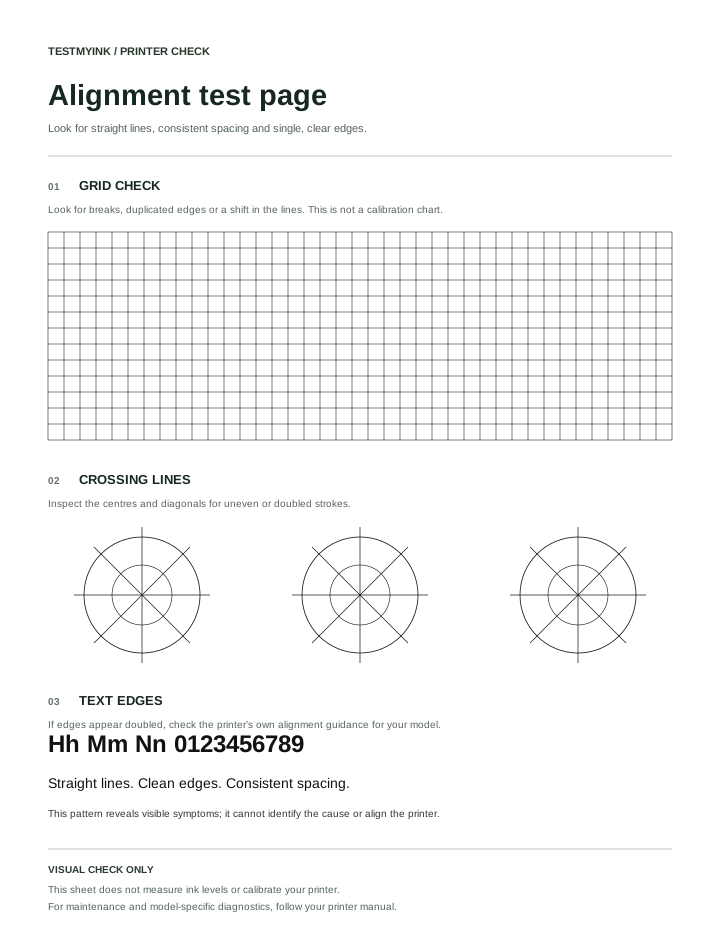
Grids and crossing lines to help you notice doubled or uneven edges.
This printer alignment test page makes line breaks, doubled edges and uneven spacing easier to notice. It includes a grid, crossing lines and text. It is a visual check; it does not calculate correction values or align the printer.
How to use the pattern
- Select A4 or US Letter to match your paper.
- Print in portrait orientation with normal quality. Disable browser headers and footers.
- Look closely at grid intersections, diagonal lines and the edges of large letters.
- Keep a note of where defects appear. If you change a setting or run model-specific maintenance, compare a new sheet with the original.
What the sections show
| Section | Look for |
|---|---|
| Grid | Discontinuous strokes, duplicated lines or a local shift. |
| Crossing lines | Edges that appear doubled, jagged or uneven around intersections. |
| Text | Shadows or gaps around letter strokes. |
The pattern has no calibrated ruler. Do not use it to measure exact print scale or select numbered alignment corrections. Browser scaling and driver processing can affect fine lines.
Does a doubled edge mean the printer needs alignment?
It may justify checking alignment, but this sheet alone cannot identify the cause. Compare another document and the printer’s built-in test. Use the alignment procedure described in your exact model’s manual if the manufacturer recommends it for the symptom.
Next steps
For missing horizontal areas or repeating stripes, see why prints show lines. To check tonal detail rather than geometry, use the grayscale test.
Separate alignment, clipping and page skew
These symptoms can look similar on an ordinary document. On this alignment print test, compare the whole grid with the individual strokes. Doubled letter edges are a different observation from a grid that appears tilted on the sheet. A missing outer section may instead be a preview or printable-area issue.
- Content is cut off: check the preview, portrait orientation and matching paper sizes before running maintenance.
- The whole pattern looks tilted: check how the paper is loaded using the printer’s manual. Compare another document to see whether the same tilt repeats.
- Lines have local breaks or doubled edges: compare the printer’s own diagnostic output before selecting an alignment routine.
Can this sheet calibrate my printer?
No. A generic printer alignment test page cannot provide the numbered choices required by a manufacturer’s calibration routine. If the device asks you to scan an alignment sheet or choose a numbered pattern, generate the sheet using that device’s instructions. Do not substitute this browser pattern.
Make a useful before-and-after comparison
Mark one affected area on the original sheet and record the paper and quality settings. After an appropriate adjustment, print the same pattern with those settings. Compare that area rather than relying on memory. If the result becomes worse, keep both sheets for support instead of repeatedly changing unrelated settings.
Use the colour print test for colour coverage, or the printer troubleshooting directory when the defect is difficult to classify.