Colour printer test page
Let’s see how it prints.
One sheet is a good place to start.
Selected test: Colour Other tests ↗
Use normal print quality and portrait orientation. Turn off browser headers and footers.
Opens your browser’s print dialog.
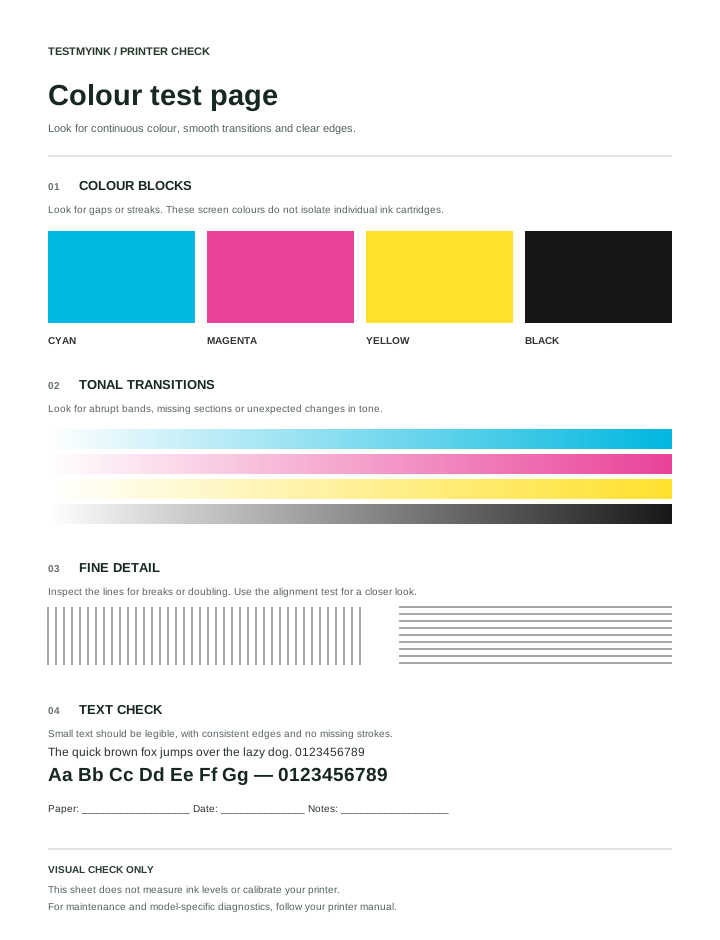
Colour blocks, gradients and fine detail in one general print check.
Use this colour printer test page for a general check of colour coverage, smooth gradients and fine detail. It works as a browser print job, so the result includes the effects of your printer settings, driver, paper and supplies.
How to print the colour test
- Load plain paper and select A4 or US Letter above.
- Choose Print test page, then select your printer. Choose colour rather than grayscale in its settings.
- Use portrait orientation, normal quality and a single copy. Turn off browser headers and footers. Check that the preview fits on one sheet.
- Let the page dry if needed, then inspect it under consistent lighting.
What to look for
| Pattern | Useful observation | Next check |
|---|---|---|
| Colour blocks | Visible white gaps, streaks or uneven areas | Compare with the printer’s built-in quality report. |
| Gradients | Abrupt bands or missing sections | Check the quality setting, paper selection and a second document. |
| Fine lines | Broken or doubled edges | Try the alignment pattern. |
| Text | Blur or incomplete strokes | Compare with the black-and-white test. |
Why the colours are not an ink-level test
The cyan, magenta, yellow and black blocks are screen-defined colours. Your printer driver decides how to reproduce them and may combine several inks. A missing-looking colour on this page does not prove that a particular cartridge is empty. Check supplies through your printer’s own interface.
Should the print match my screen exactly?
No. A glowing screen and a sheet of paper display colour differently. Brightness, room lighting, paper and colour settings affect the comparison. Use this pattern to notice visible defects; use a managed colour-proofing process when accurate colour matching matters.
This page cannot clean a printhead or change printer calibration. For those tasks, follow the instructions for your exact model.
Seeing a problem? Continue with lines and streaks or faded printing.
Compare your colour printer test results
Start with the large areas rather than the smallest details. Check whether each block is filled, whether a pale stripe crosses more than one colour, and whether black text has complete strokes. Then compare the same areas on a second document. A colour that looks unusual on this one pattern is less informative than a defect that repeats across unrelated jobs.
- Everything prints in gray: check that the selected printer supports colour and the job is not set to grayscale. Print another colour document before investigating supplies.
- Only one area looks weak: record which area and compare the printer’s own quality report. The browser cannot identify an empty cartridge.
- All areas are pale: compare normal quality with the current mode and follow the faded print checklist.
- White gaps cross several blocks: note their direction and use the printer banding and streaks guide.
Can I use this as a CMYK or nozzle test?
The page includes cyan, magenta, yellow and black-looking patches, but a browser colour print test does not control individual ink channels. It is not a replacement for the manufacturer’s nozzle check. Use that model-specific test when you need to inspect nozzle output; do not interpret these blocks as cartridge measurements.
Keep a repeatable reference
Save the colour test page as a PDF through the print dialog if you want an offline copy. When printing the PDF later, check paper size and scaling again: a different viewer may use different settings. For a general comparison of text and colour, return to the free printer test tool.